GullySystem

Desktop Application Development

Desktop application development covers Windows software driven by scanners, scales, cash drawers and receipt printers at counters and plant floors. The work centres on the connected hardware and on behaviour when the network is down.
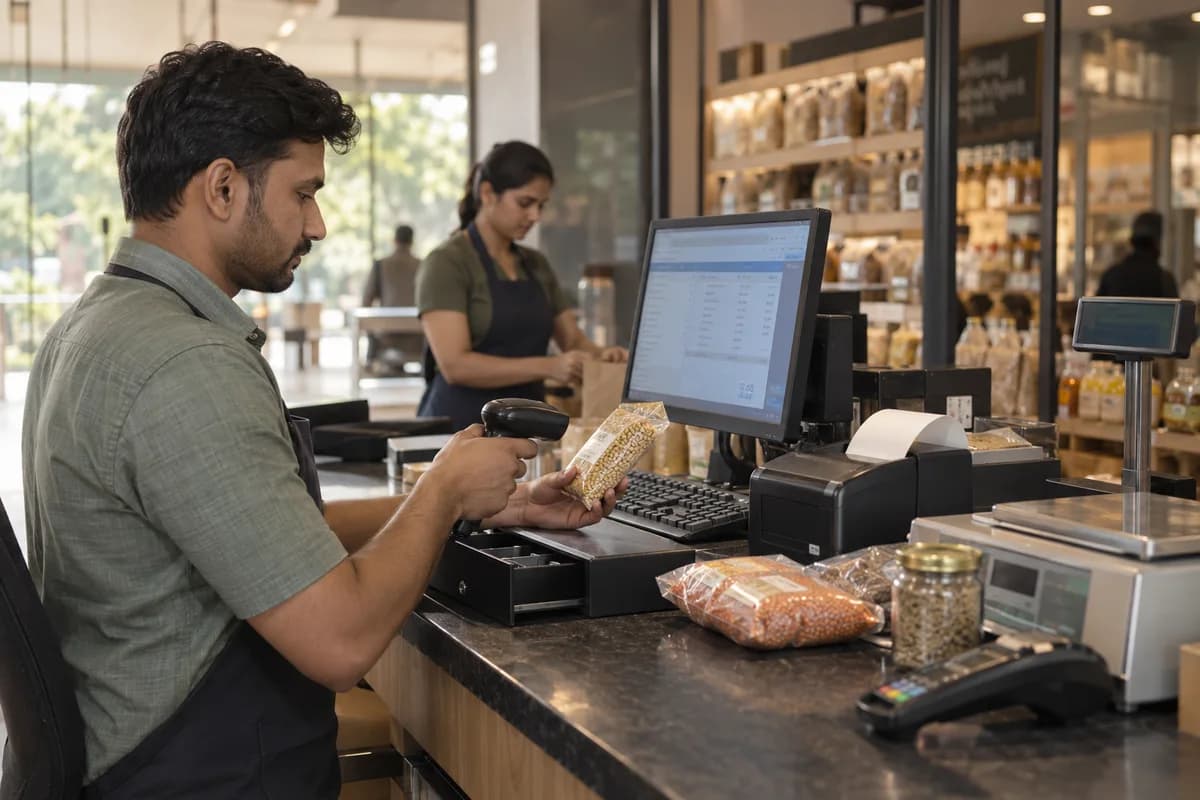
The hardware that shapes the build

Thermal and dot-matrix printers

Receipts and delivery notes are driven directly, so the paper comes out formatted and not as raw text. The printer model matters more than the brand.

Weighbridges and scales

Readings are taken from the indicator, and the operator does not type them. Whether a device can be read depends on its interface, which is checked with the make and model first.

Scanners and card readers

Barcodes, QR codes and access cards are read straight into the entry screen. Entry is quick.

Packaging and updating every machine

One installer

A single file is run by your staff, with settings supplied in advance and not typed at each counter.

Quiet updates

The software checks for a new version and installs it outside working hours, so counters open on the current release.

Machine registration

Each installation is known to the server. A lost machine can be cut off.

Testing for failures at the counter

Power cuts

A bill interrupted midway does not leave half a record behind. It is either saved whole or not at all.

Printer failures

A reprint comes from the saved bill, and the operator does not enter everything again when the printer runs out of paper.

Two counters at once

Numbering does not collide when two machines save in the same second.

Hardware and drivers to confirm early

Desktop projects stall when a device behaves differently than its brochure says.

Get the device in hand

Printers, scales, scanners and card terminals are tried on the real machine in week one. Sample units from the maker help here.

Check the driver route

Some devices expose a serial port, others a vendor library, and a few only a Windows service. The route decides the integration method.

Plan for replacement

When a scale dies, a different model arrives. The device layer is kept separate so the swap needs little rework.

Choosing a technology

The framework follows the Windows versions and the people who will maintain the code.

.NET and WPF or WinForms

A common fit for Windows-only business software with direct hardware access. Microsoft’s documentation notes WPF runs on Windows only, even though .NET itself is cross-platform.

Electron

Electron bundles Chromium and Node.js, so web developers can write one JavaScript codebase for Windows, macOS and Linux. The cost is a larger install.

Web app with a local helper

A browser app, plus a small service on the counter machine that talks to the hardware. Keeps updates central.

Signs the build is ready for a shop

A counter test is stricter than a demo.

Billing during a power cut

The machine restarts and the half-finished bill is recovered.

A queue at peak hour

Entry stays fast with a full day of records loaded.

A new cashier

Someone with no training completes a sale with the screen alone.

A day with a counter application on Windows

A Windows counter application sits beside a scanner, a scale and a printer. Staff expect it to be fast and forgiving. The day below shows how a shop team uses it, and what is recorded at each point. Each step is saved.

Opening the till in the morning

The cashier signs in, enters the opening cash and the application checks the printer and scanner. A failed device shows a plain message. Opening figures are saved against the cashier’s name. Faults are shown plainly. Staff need not guess.

Busy hour at the counter

Items are scanned, a weighed item is read from the scale and the bill prints. If the connection drops, billing carries on. The queue does not wait, and the bills are marked as not yet sent.

A return with a damaged receipt

A cashier looks up the sale by date and phone number, not by receipt. The manager approves it from the same screen. Manager approval is recorded.

Closing the day and sending entries

Cash is counted and entered by the cashier. The application compares it with the day’s bills and shows any difference. Once the connection returns, the saved entries go to the office. Gaps are flagged for the manager.

What the shop owner settles before the build

A counter application records money at the point of sale, so a few rules matter early. These choices come from the owner and the person who closes the day, and each shapes what the screens allow. Keep the rules simple.

Who may change a bill

Decide whether a cashier can edit a finished bill or only a manager. Some shops allow cancellation only with a reason and a second login. Write the rule and its exceptions. Exceptions go in writing. Name who may approve them.

What a bill must carry

List the fields required on every bill and on every return. Items, price, tax, payment mode and cashier are common. Anything beyond that slows the counter, so add it only with cause. Keep the counter quick.

How item lists come across

Your existing item list and barcodes must load. Decide which list is correct and who cleans it. Duplicate codes found now will cause wrong scans at the counter later. Clean the list first. Wrong scans cost real time at the counter.

The first end-of-day report

Pick the report the owner reads each night, such as cash against sales. Build that one right first. Other reports can follow once the counter has used the application for a few weeks. One report is enough.

Make an informed decision

Questions to settle before rollout.

Use a representative scenario to decide what this part of the system must show and where review is still needed.

Desktop Application Development

What should the team verify before accepting this setup?

Test the actual scanner, scale or receipt printer at the counter. Disconnect the network during a transaction and agree how unfinished work is recovered after reconnection.

Background reading: Android: offline data handling

FAQ

Frequently asked questions

Is desktop software still sensible when everything is moving to the cloud?

For counters and plant floors, yes. Anything tied to hardware or a poor connection is safer installed, with the cloud holding the consolidated data behind it.

Which technologies are used?

Windows stacks that a maintenance team can still hire for, chosen around the hardware in play. That decision comes after the devices to be driven are known.

Can it run on Mac or Linux?

Sometimes. Counter hardware and its drivers are mostly Windows-first, and whether a Mac or Linux build is practical is confirmed during scoping, before any build work starts. Ask early.

Will it work offline?

Yes, if the design says so. Data is held in a local database and synchronised when the network returns. The rules for conflicts are agreed beforehand.

Can it run on Windows 7 machines?

Only with older frameworks, and Microsoft no longer supports that version. Where such machines exist, a plan to replace them is part of the advice.

How are installed copies kept in step?

The app checks for a new version when it starts, downloads it and restarts. A pilot group receives each release first.

Do we need Mac and Linux versions?

Only if staff use them. Most counter software targets Windows. A web-based or Electron design is considered when other systems are in play.

Talk to us

Tell us what you need.

Tell us what your team does today, where work gets stuck and what you want to change.

What happens after you share your requirements

  1. We review your brief and the systems you already use.
  2. We clarify the workflow, missing information and the work to consider first.
  3. The proposed scope sets out the deliverables, responsibilities and dependencies.
  4. Review the scope and commercial terms before deciding whether to proceed.

Start with your requirements

Describe your current process, the people involved and the change you need. Start with the details you know; we can clarify the rest together.

Share your requirements